Install llama.cpp on Linux and Get a First Answer on Your NVIDIA GPU
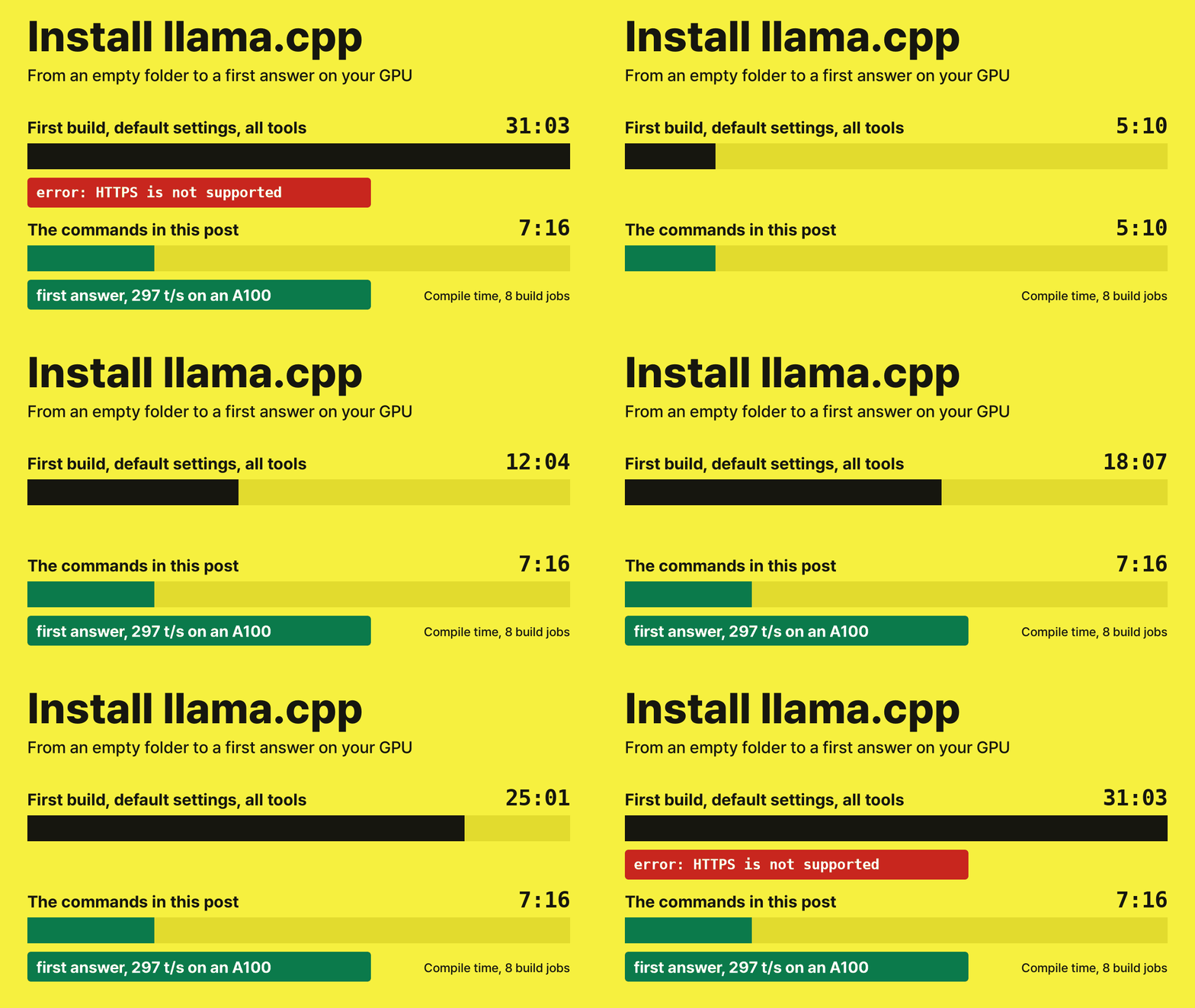
Build llama.cpp from source with CUDA, download a small model and get a first answer on your GPU. On our CMake 3.22 A100 server, building one architecture and one program cut the build from 31 minutes to about 8.
Install llama.cpp on Linux and Get a First Answer on Your NVIDIA GPU
Our first build of llama.cpp took 31 minutes on 8 cores and finished without an error. Then we asked it to download a model, and it refused:
error: HTTPS is not supported. Please rebuild with one of:
  -DLLAMA_BUILD_BORINGSSL=ON
  -DLLAMA_BUILD_LIBRESSL=ON
  -DLLAMA_OPENSSL=ON (default, requires OpenSSL dev files installed)
The only earlier sign was one warning in the middle of CMake's output. This is episode 1 of a series on running llama.cpp on your own server, and it ends the way we wanted that first build to end: with the llama program on your machine and an answer from your GPU. The commands below are the ones that worked, run again from an empty folder. If you only want a working program and no source build, jump to the one-line installer.
What you need
- Linux with an NVIDIA card and its driver working (
nvidia-smiprints your card) - The CUDA toolkit (
nvcc --versionprints a version). Ifnvccis not found, you have the driver but not the toolkit; install it from NVIDIA's CUDA Toolkit page. Without it CMake stops withCUDA Toolkit not found git,cmake(3.18 or newer) andg++
We ran this on Ubuntu 22.04 with CMake 3.22.1, GCC 11.4, CUDA toolkit 12.1 and an A100 80GB. We did not check Mac, AMD or Windows. Speeds in this post are from that A100, so yours will differ.
Our server has two A100s and we limited each run to one with CUDA_VISIBLE_DEVICES. If you have several cards, the command in Step 1 prints one line per card; do the same, for example CUDA_VISIBLE_DEVICES=0 ./build/bin/llama ....
Step 1: find your architecture number
CUDA code can be compiled for one card family or for many. Compiling for one takes less work, so we need your number:
nvidia-smi --query-gpu=name,compute_cap --format=csv,noheaderOur A100 prints 8.0, which means architecture 80. Drop the dot. llama.cpp's build file lists these:
| Number | Cards |
|---|---|
| 80 | Ampere data center cards such as the A100 |
| 86 | RTX 3000 series |
| 89 | RTX 4000 series |
| 90 | Hopper H100 and H200 |
| 120 | Blackwell (needs CUDA toolkit 12.8 or newer) |
We only built 80. The others come from comments in ggml/src/ggml-cuda/CMakeLists.txt.
Step 2: get the source
git clone --filter=blob:none https://github.com/ggml-org/llama.cpp
cd llama.cpp
We tested commit 785322d, which reports itself as build 12033. To use exactly that code, run git checkout 785322d.
The filter skips old file contents but keeps the commit history. With --depth 1 the download is smaller, but llama version then says build 1, which is confusing when you compare versions or report a bug.
Step 3: build
Replace 80 with your number, and 8 with the number of cores you want to use:
cmake -B build -DCMAKE_BUILD_TYPE=Release -DGGML_CUDA=ON \
  -DCMAKE_CUDA_ARCHITECTURES=80 -DLLAMA_BUILD_BORINGSSL=ON \
  -DLLAMA_BUILD_TESTS=OFF -DLLAMA_BUILD_EXAMPLES=OFF
cmake --build build --target llama-app -j 8
The three that matter here:
-DLLAMA_BUILD_BORINGSSL=ONfixes the HTTPS error above. It builds its own TLS library, so you need nosudo. It is fetched from the network during configure. The other route in llama.cpp's docs issudo apt-get install libssl-dev, which we did not try.-DCMAKE_CUDA_ARCHITECTURES=80builds for your card only. llama.cpp's build file picksnativeby itself on CMake 3.24 or newer, and on older versions compiles for a long list of architectures. Ours is 3.22, so we got the long list.--target llama-appbuilds the one program you need. This is the name to watch:--target llamaalso finishes with "Built target llama", but it builds only the library, and you are left without a program to run.
-DLLAMA_BUILD_TESTS=OFF -DLLAMA_BUILD_EXAMPLES=OFF leave out targets you do not need. We did not measure their effect on their own.
| Build | Configure | Compile | Result |
|---|---|---|---|
| Default settings, everything | 11 s | 31 min 3 s | 127 files in build/bin, no HTTPS |
| The commands above | 53 s | 7 min 16 s | llama plus its libraries, with HTTPS |
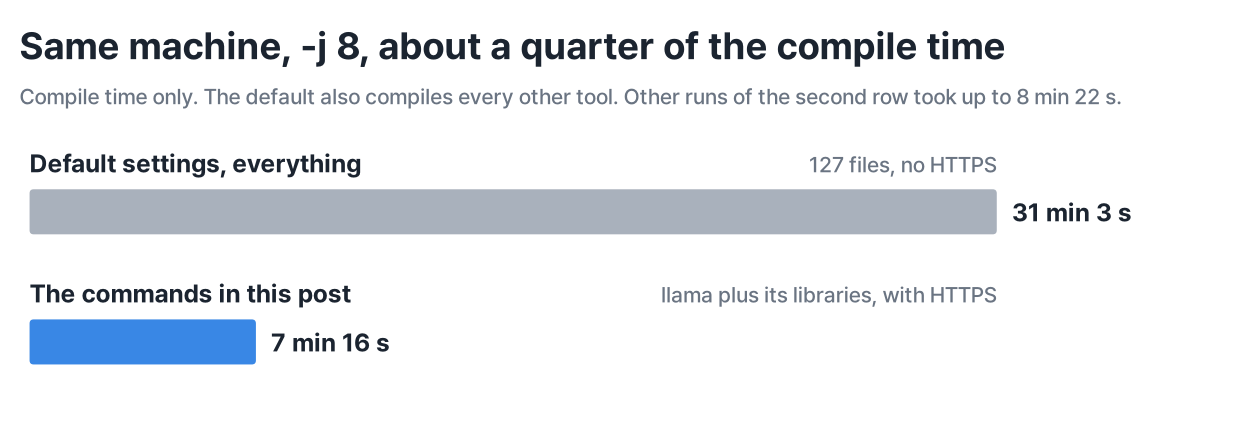
Both ran with -j 8 on the same commit and machine, at different times, and we kept no load record for either. Two other runs of the same work took 7 min 36 s from an empty folder and 8 min 22 s split into two build commands, so read the second row as 7 to 8 and a half minutes. The gap has more than one cause: the default also builds every other tool and compiles for the long list, while ours adds BoringSSL. We did not time each cause separately. On CMake 3.24 or newer your default build should be faster than ours was, but we did not run one.
Check the result:
./build/bin/llama version
./build/bin/llama cli --list-devices
The second command should list your card. Ours prints CUDA0: NVIDIA A100 80GB PCIe. With -DGGML_CUDA=ON, a missing toolkit stops CMake with CUDA Toolkit not found, so you would not get this far. If a finished build lists no CUDA device, check that nvidia-smi still works and that CUDA_VISIBLE_DEVICES is not hiding the card.
Step 4: first answer
./build/bin/llama cli -hf ggml-org/Qwen3.5-0.8B-GGUF \
  -st -n 200 --reasoning off \
  -p "In one sentence, what does a GPU do?"
-hf downloads the model from Hugging Face on the first run. This one is 795 MiB on disk, and the whole first run took us about a minute and a half. After that it comes from the cache (~/.cache/huggingface/hub by default), and the same command took under 3 seconds. -st answers once and exits, and -n 200 caps the answer at 200 tokens.
--reasoning off is there because of what happened without it. This model thinks before answering, and our first run spent all 200 tokens thinking and stopped mid-sentence, before any answer. With it off we got:
A GPU is a specialized graphics processing unit that accelerates computational tasks by performing massive parallel operations efficiently, often far exceeding what a CPU can do.
The last line of the output shows the speed: [ Prompt: 468.7 t/s | Generation: 297.3 t/s ].
Is it really on the GPU?
A working answer does not prove it. Run the same command with --device none added, which keeps the model off the GPU entirely, and compare the Generation number. Our speeds are from three runs each, and the memory column from three more runs each, which read the same number every time:
| Generation speed | GPU memory, nvidia-smi peak | |
|---|---|---|
| A100 | 294-317 t/s | 4,632 MiB |
| CPU, 64 threads | 36 t/s | 426 MiB |
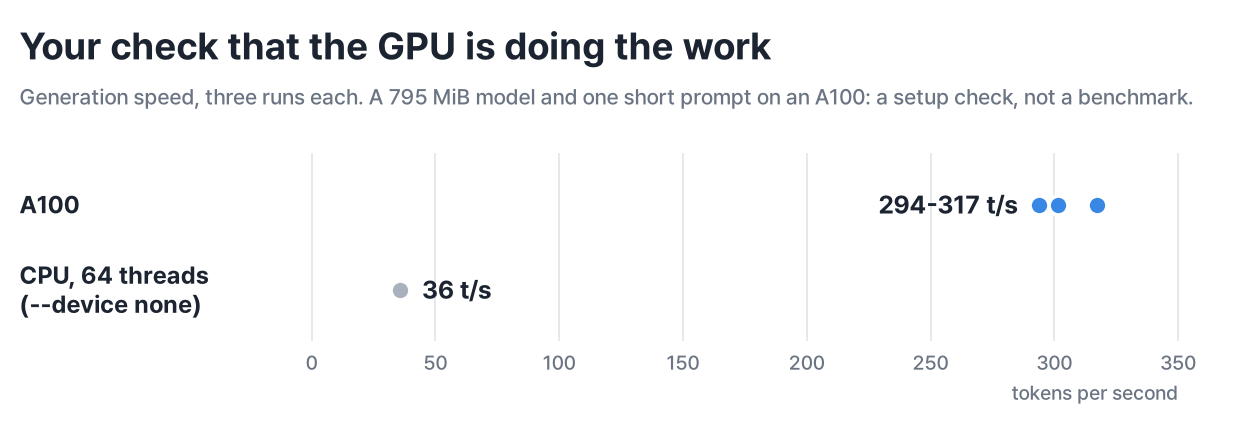
That is about 8 times faster, for a very small model and one short prompt, so treat it as a check that the setup works and not as a benchmark. In the second set, with other jobs also running on the machine, the A100 did 304-308 t/s and the CPU 31-33 t/s, so expect the CPU number to move. We plan a later episode on measuring your card properly.
To check in the log, filter the -v output:
./build/bin/llama cli -hf ggml-org/Qwen3.5-0.8B-GGUF -st -n 200 --reasoning off \
  -p "In one sentence, what does a GPU do?" -v 2>&1 | grep "model buffer size"
An early 0.00 MiB line is a dry run. Look for the later CUDA0 model buffer size = 763.78 MiB. On our --device none run there is no such line, only CPU_Mapped model buffer size = 763.78 MiB. Do not go by the line offloaded 26/26 layers to GPU: our --device none run printed it too, and that run was on the CPU.
We did not need to set -ngl: its default is now auto, so the -ngl 99 you see in older guides is no longer required here. We have not yet tried auto on a card too small for the model.
If you try -ngl 0 for the CPU run instead, the speed is about the same, but it still held 1,476 MiB of GPU memory in our runs. Use --device none.
Why does an 800 MB model take 4 GB?
You may have noticed that memory number. Here is the breakdown llama.cpp logs with -v:
| Total | Model | Context (KV cache) | Compute | |
|---|---|---|---|---|
No -c | 4,144 MiB | 763 | 3,091 | 289 |
-c 4096 | 868 MiB | 763 | 67 | 37 |
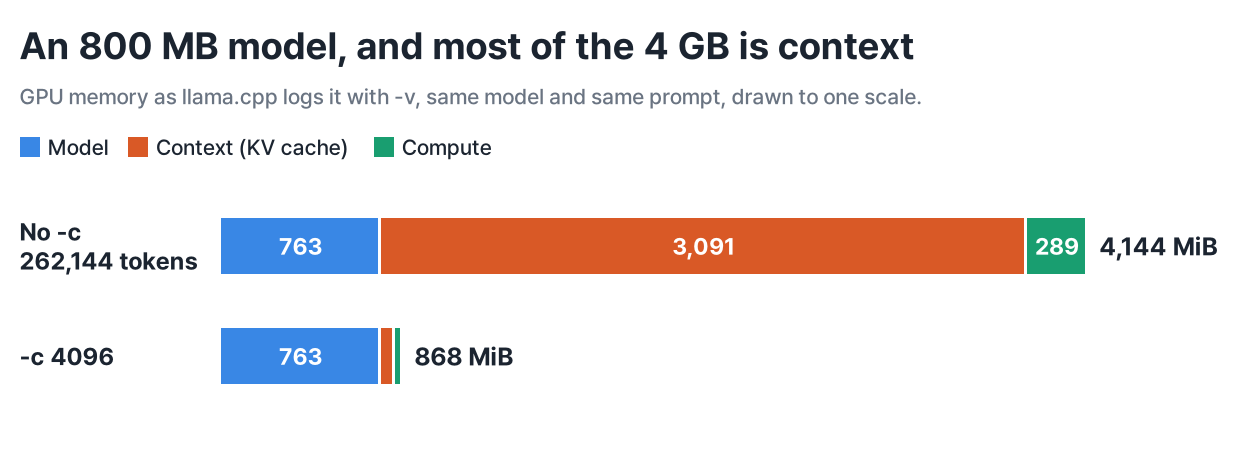
With no -c, llama.cpp reserves the longest context the model was trained for, which here is 262,144 tokens. That is on a card with room to spare. The --fit option, on by default, may lower an unset context to fit your card, down to 4,096 tokens. We read that in the source and have not run it on a small card. Either way, the model file is not the main cost on the card. We plan to cover choosing this number in a later episode. If you already need the cache smaller, our KV cache quantization guide measures what -ctk and -ctv save.
The nvidia-smi number in the earlier table, 4,632 MiB, is about 490 more than the 4,144 total, and llama.cpp's log line reports that amount as outside its totals. With only a --device none process running and no model on the GPU, the card still read 426 MiB, against 4 MiB when idle. We did not trace the gap further.
The one-line installer
llama.cpp now documents a shorter route:
curl -LsSf https://llama.app/install.sh | shWe ran it with an empty home folder. It finished in 36 seconds: it found CUDA, chose the build for architecture 80 by itself and put a llama program of about 520 MiB in ~/.local/bin, with a second copy left in ~/.llama-app. It does not change your PATH. It prints the line to add instead, so until you add it, call the program by its full path.
Look for a Found: line right after Probing CUDA.... If that probe fails, the script moves on to ROCm, Vulkan and then CPU, and still reports success, so run ~/.local/bin/llama cli --list-devices afterwards. We read this in the script; on our machine the CUDA probe succeeded.
The first-answer command from Step 4, with ./build/bin/llama changed to ~/.local/bin/llama, then worked at 316-321 t/s over three runs, against 36 on the CPU. In a later run on the first A100, the card our source-build memory runs used, nvidia-smi peaked at 4,632 MiB, the same as our source build. The speed is not a fair race against our source build: the installer gave us build 12019, older than the 12033 we built, the three speed runs used the machine's second A100 while another process used the first, and we do not know how its binary was compiled. Our machine also has the CUDA toolkit installed, so we did not test whether the installer works without it.
If you just want a working program, start here. We plan to take the numbers in later episodes from a source build, and to include a section that rebuilds with a different GGML_CUDA_FA_QUANTS setting, which a downloaded program cannot do.
If it breaks
These are failures from our logs. We caused the moved-folder one on purpose to confirm it.
| What you see | Cause | Fix |
|---|---|---|
HTTPS is not supported when downloading | Built without a TLS library, and CMake only warned OpenSSL not found, HTTPS support disabled | Add -DLLAMA_BUILD_BORINGSSL=ON, then configure and build again |
nvcc fatal : Unsupported gpu architecture 'compute_' and a CMake error in CMakeDetermineCompilerId.cmake | -DCMAKE_CUDA_ARCHITECTURES=native on CMake 3.22 | Use the number from Step 1 |
"Built target llama" but no build/bin/llama | --target llama builds only the library | Build --target llama-app |
libllama-cli-impl.so: cannot open shared object file | The llama program finds its libraries in the build folder by absolute path, and the folder was moved | Move it back or build again. A symlink to the program is fine, as long as the build folder stays |
| The answer stops mid-sentence inside its thinking | Reasoning used up -n | Add --reasoning off or raise -n |
llama version says build 1 | Shallow clone with --depth 1 | Clone with --filter=blob:none |
What you have now
A llama program built for your card, a small model in your Hugging Face cache, and a way to tell whether the GPU is doing the work. The same program also has llama serve, llama bench and llama quantize, which we plan to use in later episodes.
Next, we plan to pick a model file that fits your card.